Posts

Cannot import SVG file to android studio (AssetStudio) by "The specified asset could not be parsed" error.
Image
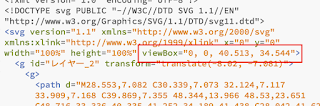
Android studio's Asset Studio is easy to import SVG file to resource, but it does not seem to support full SVG and some valid SVG files get an error as "The specified asset could not be parsed". Some say height & width attribute of svg tag should have px, but in my case with SVG files made by AutoDesk's Graphic(Mac), the problem was <svg ... viewbox="0, 0, 40.513, 34.544"> (viewBox attribute of svg tag is comma separated). I open the file by a text editor and changed it to <svg ...="" viewbox="0 0 40.513 34.544">(separate figures only by a space) , then it works. I don't know how many people use Graphic and Android Asset Studio, but I hope this finding will save someone's time.
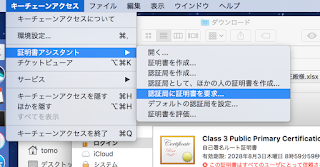
If you can't write .p12 file from .cer ... (greyed out)

Image
... make sure your .certSigningRequest file is one from Key Chain Access on your current Mac, and it has key pair information. Then, you submit it to Apple developer console and download .cer file. With double clicking .cer file, you can see it on the Key Chain Access and hopefully you can choose .p12 extention to write.

Amazon EC2 Container Service(ECS): EC2 instance does not appear on Cluster-ECS Instance Tab.

If you don't see EC2 Instance(ECS instance in formal??) on ECS-Cluster-ECS Instance tab on AWS console, try check EC2 instance must have ecsInstanceRole. EC2 instance must created from one of ecs-optimized AIM. user data of EC2 instance(Action -> Instance Setting -> User Data) has to include your cluster-name. EC2 must in subnet with internet-gateway.

Docker simplest alpine sshd

Long time no see, (but who cares?) As I struggled to install and run sshd on alpine linux, I want to share it with you. (I assume you are the one googled docker/alpine/sshd, aren't you?) Before docker build need public key to connect server. # create id_ed25519 and id_ed25199.pub to current dir. > sshd-keygen -t ed25519 Dockerfile FROM alpine RUN apk add --update --no-cache openssh && \ rm -rf /tmp/* /var/cache/apk/* && \ adduser -D user && \ passwd -u user && \ # SSHD CONFIG { \ echo "PermitRootLogin prohibit-password"; \ echo "PasswordAuthentication no"; \ } >> /etc/ssh/sshd_config && \ # GENERATE KEYS { \ echo "$PASS=PASS$RANDOM"; \ echo "PASSWORD for user is $PASS"; \ echo "echo -e $PASS'\n'$PASS | passwd user"; \ echo "ssh-keygen -A"; \ echo 'exec "$@"'; \ } > /usr/sbin/key_gen.sh COPY i...

SUDDEN "Permission denied (publickey,gssapi-keyex,gssapi-with-mic)." !!

On Google Compute Engine, my server suddenly ceased to respond "gcloud compute ssh" command 3 days ago. It only shows Permission denied (publickey,gssapi-keyex,gssapi-with-mic). After making new account, I looked into the /var/log/secure, but it only said Connection closed by xxx.xxx.xxx.xxx Changing LogLevel of /etc/ssh/sshd_config to VERBOSE doesn't make big difference. It only showed Failed publickey for [ login name ] from xxx.xxx.xxx.xxx port xxxxx ssh2 Connection closed by xxx.xxx.xxx.xxx Googling about ssh login problems, many blogs tell to doubt permissions of ssh files and directories, such as ~/.ssh and ~/.ssh/authorized_keys, but they seemed to have proper permissions. Now, I just found the home directory(~/) also has to have permission 700. It's embarrassing I do not remember how the permission changed in the first place, but I hope this will help somebody from spending three very useless days. Conclusion, when you suddenly cannot connect to ...

Dump UTF-8 object to JSON file on Python.(JUST REMINDER for myself)

with open('xxx.json', 'w', encoding='utf-8') as f: f.write(json.dumps(obj, indent=2, ensure_ascii=False))

In case having problem with Vagrant Sync folders...

After being stuck with vagrant that sync-folders are not synced on vagrant up, I seem to find a way to fix it. Here is the way I tried. * host-os: OSX Yosemite & guest-os: CentOS6 1. Install vagrant guest plugin. vagrant plugin install vagrant-vbguest 2. update kernel on vagrant's guest. sudo yum install kernel-devel sudo yum update kernel* 3. exit guest and reload vagrant. vagrant reload